
Sound library manager and audio editing suite
Fast Sound Library FSL, with Fast Sound Editor. Windows, macOS, and Linux.
A working environment for people who keep thousands of sounds on disk: sound designers, video editors, game developers, musicians, podcasters, and anyone whose day involves finding one file among music, samples, field recordings, dialogue, and effects.
Local search, keyboard auditioning, annotation, project organization, sample-accurate waveform editing, spectral repair, and audio analysis sit in one window. Existing folders stay where they are. Nothing is imported, relocated, or renamed, and the library, annotations, edits, and exports stay on your machine.
- Applications
- FSL and FSE
- Platforms
- Windows, macOS, Linux
- Licensing
- One-time purchase
- Account
- Not required
- Cloud service
- Not required

00
One purchase, two applications, and no boundary between them while you work.
- Windows, macOS, Linux
- One-time purchase
- No account
- Files stay where they are
Two applications, one library, one window
Fast Sound Editor runs on its own and also opens inside Fast Sound Library as an editing surface. A library result opens for editing from its context menu or the keyboard, and an already open document is focused rather than decoded a second time.
Application 01
Fast Sound Library
Finds, auditions, annotates, and organizes large local collections without moving a file.
- Indexing Watched folders, durable local index, disconnected folders held as actionable states
- Finding Free text and structured predicates, Smart Collections, sidebar filters, Quick Open
- Hearing Keyboard auditioning, varispeed, pitch, reverse, range looping, channel isolation
- Filing Text tags, color tags, notes, favorites, listened state, Project Bins
- Delivering Clip export from a waveform range, transcode, reveal in the file manager, drag out
Application 02
Fast Sound Editor
Prepares those sounds for production with sample-accurate editing and spectral repair.
- Editing Exact integer sample positions, multichannel display, per-channel editing
- Operations Cut, Copy, Paste, Mix Paste, Trim, Silence, Duplicate, Reverse, Invert, fades, gain
- Repair Spectral marquee, lasso, and brush selection, attenuation, and Spot Healing
- Measuring Frequency Analysis, Amplitude Statistics, Phase Meter
- Keeping Labeled history, crash recovery for untitled documents, atomic saves
Specifications
| Item | Detail |
|---|---|
| Applications | Fast Sound Library and Fast Sound Editor |
| Platforms | Windows 10 and 11, macOS 13 or later, Linux |
| Interface | Native and hardware accelerated, with adjustable scaling |
| Licensing | One-time purchase, no subscription, no feature tiers |
| Account | Not required |
| Network | Not required for library or editing work |
| Automation | Command-line applications and local agent tools |
| Local state | Versioned index, annotation journal, and bounded clearable caches in the platform application data directory |
01
A library that indexes where your sounds already live, instead of asking you to move them somewhere it prefers.
- Watched folders
- Virtualized results grid
- Durable local index
- Annotations kept out of source files
Library management
Fast Sound Library adds existing folders without importing, relocating, renaming, or modifying the source files. Folders are added through the native file dialog or by dropping them onto the window.
Watched folders are monitored for files that are added, removed, renamed, or changed on disk, so the index stays in step with the collection without a manual rebuild. Large collections are presented through a virtualized results grid: only visible rows are laid out and painted, which is what keeps scrolling smooth at the size a working library actually reaches.
Detail
- ColumnsName, tags, duration, format, sample rate, and path. Resize, reorder, show, and hide; the configuration is restored at the next launch.
- Format groupingThe same sound held as WAV, OGG, and MP3 in one folder is presented as a single result. The highest quality version plays, and every original file location stays reachable.
- Identical copiesOptional grouping of the same file found in different folders, so a shared pack that landed twice does not read as two sounds.
- Unavailable foldersA disconnected drive or a removed folder stays visible as a state you can act on rather than disappearing from the library.
- Annotation storageTags, notes, colors, favorites, and project membership are stored beside the library, not written into production assets.
- RecoveryThe index and the annotation journal are versioned and written to a temporary file and then replaced atomically, with a backup fallback and a visible report instead of a silent empty start.
02
Typing is the filter. There is no query builder to open and no filter panel to configure first.
- Search as you type
- Free text plus predicates
- Sidebar filters
- Quick Open, Quick Commands
Search and discovery
Search begins as soon as you type and covers file names, complete paths, categories, text tags, favorites, formats, duration, file size, sample rate, channel count, listened state, and color tags.
Free-text terms combine with structured predicates, so a large collection narrows to a precise working set in one field. Search and filter state stay stable while annotations change, and only affected results are updated.
Search syntax
| Predicate | Example | Matches |
|---|---|---|
duration: time: | duration:>30s | Seconds by default, with ms, s, and m suffixes. Accepts >, >=, <, <=, and a 1..10 range. |
size: | size:<5mb | File size with kb, mb, and gb suffixes, with the same operators and ranges. |
sr: rate: | sr:48k | Sample rate, written in full or with a k suffix. |
channels: ch: | ch:2 | Channel count. mono and stereo also work as bare words. |
format: ext: | format:wav | Container or file extension. |
tag: | tag:impact | Text tag applied to the sound. |
color: | color:3 | One of the nine color slots. |
favorite: fav: | fav:true | Favorite state. |
listened: | listened:false | Whether the sound has been auditioned. |
Detail
- SidebarDirect access to all sounds, folders, favorites, text tags, color tags, Smart Collections, and Project Bins, each with a live count.
- Quick OpenLocates sounds and open waveform documents by name from one field.
- Quick CommandsSearchable access to application actions by name or by keyboard shortcut.
- Incremental updateChanging a tag or a color does not rebuild the result set. Only the affected rows change.
03
Reviewing candidates is the slowest part of sound work. It should run at the speed of the arrow keys.
- Up and Down audition
- Drag a loop range
- Varispeed and pitch
- Channel isolation
Keyboard auditioning and transport
A selected sound plays with Enter, Space, or a double-click. Up and Down move through the result set and audition each sound as they go, so a long list of candidates is reviewed without returning to the pointer.
Playback continues while you change folders, search, filter, or file sounds into a bin. The transport stays attached to the sound that is actually playing, even when another row is selected or the visible result set changes underneath it.
Transport
- PlaybackPlay, pause, stop, seek, and waveform scrubbing, with progressive decoding so a long file starts before the whole source has loaded.
- LoopingLoop the complete file, or drag a range on the waveform and loop that range. Clicking the waveform clears the selection.
- Speed and pitchVarispeed from a quarter speed to four times speed, and pitch across twelve semitones in each direction.
- DirectionReverse playback for checking tails, transients, and looped material.
- ChannelsIsolate the left or right channel of a stereo file from the transport.
- QueueAdd a selection to the Audition Queue and play it as one pass.


04
Amplitude answers some questions. Frequency answers the rest.
- Peak waveform
- Spectrogram
- Waveform, frequency, phase views
- Preferences restored
Waveforms, spectrograms, and visualizers
Every loaded sound is drawn as a peak waveform that supports direct seeking and range selection. Progressive loading keeps the transport useful while a long file is still being prepared.
A spectrogram can take the place of the audition waveform when frequency content is more informative than amplitude. Animated views cover waveform, frequency spectrum, stereo phase, and audio-reactive rendering, and a backdrop can respond to the sound that is playing. Animation is suppressed when it is not doing anything useful, so an idle window does not spend power drawing.


Detail
- Peak overviewBuilt once per load and reused for scrubbing, seeking, and range selection.
- Progressive displayThe waveform fills in as decoding proceeds rather than blocking on the complete file.
- ViewsWaveform, frequency spectrum, stereo phase scope, and audio-reactive rendering, switched from the pane itself.
- PersistenceWaveform, spectrogram, visualizer, and backdrop choices are restored at the next launch.
05
Cataloging only survives if a wrong keystroke is one Undo away, and if the record is still there tomorrow.
- Tags, colors, notes
- Multi-selection editing
- Labeled Undo
- Durable journal with Retry
Tags, notes, and annotations
Sounds carry freeform text tags, one of nine color slots, multiline notes, favorite state, and listened state. Tags are created by using them and stay available as suggestions across the library.
The Tags column keeps annotations visible in the results grid, and sidebar counts lead straight to every tagged group. A value that does not fit its column is still readable through hover details, which matters most for long paths and long tag lists.
Editing a selection
- Mixed statesA tag can be added to or removed from a whole selection, notes can be replaced or cleared in one operation, and colors or favorites apply as one transaction.
- UndoEach change carries a meaningful label. Undo restores the affected annotations together with the selection, the primary sound, the keyboard anchor, hover state, scroll position, and the active sidebar filter.
- SavingChanges are written in the background through a durable local journal. Rapid edits combine into recoverable checkpoints without blocking further work.
- FailureIf a save fails, the edit stays in memory and a persistent Retry action is offered. The application does not discard the change or report success it did not achieve.


06
A search worth running twice is a view. A set of sounds for one job is a bin. They are different things and they are kept apart.
- Saved searches
- Manual bins
- Keyboard slots
- No duplication on disk
Smart Collections and Project Bins
Any active search can be saved as a Smart Collection and restored later with its criteria intact: unreviewed field recordings, stereo ambience above a chosen duration, favorite music beds, high-resolution masters, or the sounds under a recurring category.
Project Bins hold manual sets for a video, a game, an episode, a scene, or a client. Adding a sound to a bin does not move the file or change its permanent annotations, and the same sound can belong to several projects without being duplicated on disk.
Detail
- CreatingSave the current search as a collection, or create a bin from the current selection.
- FilingThe first nine bins take keyboard slots. Any bin can be reached by name through the bin picker.
- RemovingRemoving a sound from a bin lists only the bins that hold part of the selection, so the command is never a guess.
- LifetimeBins are renamed and deleted independently of the library. Deleting a bin does not touch a file.
07
The library is an index over ordinary files, not a container another tool has to be let into.
- Range to a new clip
- Background export
- Transcode a selection
- Drag out to any application
Clip export and external workflow
Select a range on the audition waveform and export it as a new clip while the original file is left alone. The loop range is the export range, and the destination is chosen through the native Save dialog.
Export runs in the background with visible progress, so searching and auditioning continue while a result is written. A selection can also be transcoded to another format, and sounds can be revealed in Explorer or Finder, copied as paths, or dragged straight into a digital audio workstation, a video editor, a game engine, or a file manager.

08
Sample positions are integers. Anything outside the selection comes back bit for bit.
- Standalone and embedded
- Sample-accurate positions
- Zero-crossing snapping
- Labeled, navigable history
Fast Sound Editor
Fast Sound Editor ships as its own application and as the editing surface inside Fast Sound Library. A library result opens for editing from its context menu or the keyboard, and a document that is already open is focused rather than decoded a second time.
The Library stays pinned as a tab while waveform documents are opened, reordered, edited, saved, and exported in the same window. Each document keeps its own dirty state, selection, playhead, viewport, markers, history, and recovery information.

Documents
- ClosingClosing the application reviews every unsaved document and offers Save, Don't Save, and Cancel for each one.
- RecoveryImported and untitled documents take part in crash recovery, including their edits, markers, metadata, selection, and playhead.
- SavingSaves replace the destination atomically. A partially written file is never exposed in place of the original.
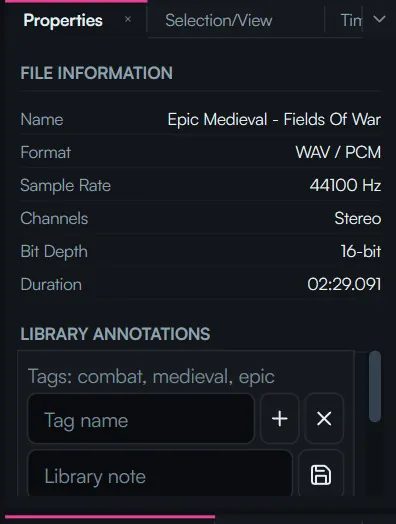
- AnnotationsLibrary tags and notes stay visible and editable in the Properties panel while the document is open.
Waveform editing
Editing works on exact integer sample positions with a multichannel display, and can be restricted to individual channels. At close zoom the editor draws the sample polyline and the sample points themselves. Selection boundaries can be moved inward or outward to zero crossings, which is what removes the click at an edit point. Gain and fade handles are adjusted directly on the selection, structural edits carry markers with them, and audio outside the edited selection is preserved bit for bit.
- StructuralCut, Copy, Paste, Paste to New, Delete, Trim, Duplicate.
- LevelSelection gain, Silence, Fade In, Fade Out, Invert.
- DirectionReverse a selection or the whole document.
- LayeringMix Paste with independent source and destination gain and an edge crossfade.
- MarkersPoint and range markers that move correctly through structural edits and round-trip through WAV cue and label information.
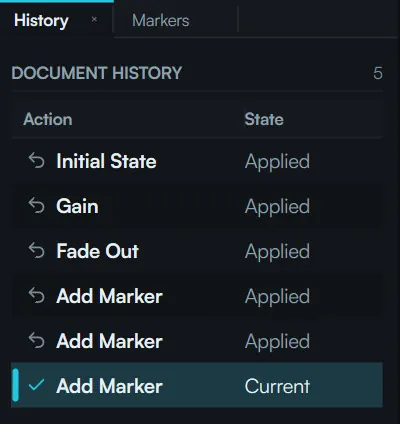

History is navigable, not only reversible. Undo and Redo restore the audio together with the selection, viewport, playhead, and keyboard focus, and the History panel jumps directly to any visible state. Exploratory repair does not cost you the place you were working in.
09
A cough, a chair, a click, a hum. Remove the region in time and frequency and leave the rest untouched.
- Marquee, lasso, brush
- Add, subtract, feather
- Gain and attenuation
- Spot Healing Brush
Spectral selection and repair
The Spectral Frequency Display puts waveform and frequency views on one shared playhead, selection, pan, zoom, and time axis. Frequency reads on a linear or logarithmic scale, and the display range and analysis resolution are adjustable for the material.
Spectral tiles arrive progressively, coarse first and refined in the background, so the document stays usable while detailed analysis is still being prepared. Time-frequency regions are selected with a marquee, a freeform lasso, or a paintbrush, and the geometry can be added to, subtracted from, feathered, and restricted to individual channels.
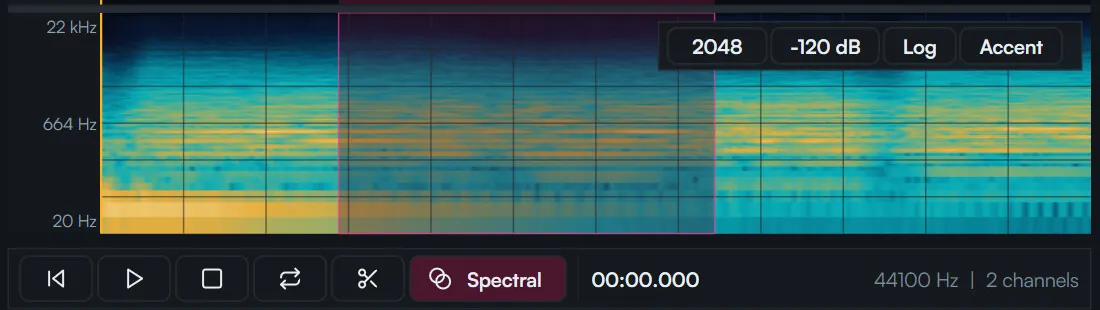
Repair
- AttenuationSpectral gain and attenuation support partial repair, so a resonance can be reduced instead of removed.
- Spot Healing BrushReconstructs a selected problem from the surrounding material in both time and frequency.
- IsolationWork is bounded by the selected region. Everything outside it is preserved bit for bit.
- DurabilitySpectral selections are preserved through Undo and through crash recovery.
10
Delivery specifications are numbers. The application reports them rather than leaving you to read a graph.
- Frequency analysis
- Amplitude statistics
- Phase meter
- Comparison snapshots
Audio analysis
Frequency Analysis draws a logarithmic spectrum from the low end of the audible range through the document's available bandwidth. It follows the playhead or averages a selected range, names the dominant frequency, and holds comparison snapshots for judging a change before and after processing.
Reported values
- Amplitude statisticsSample peak, oversampled true peak, RMS level, integrated loudness, maximum short-term loudness, DC offset, source or estimated bit depth, sample count, channel count, and an amplitude histogram.
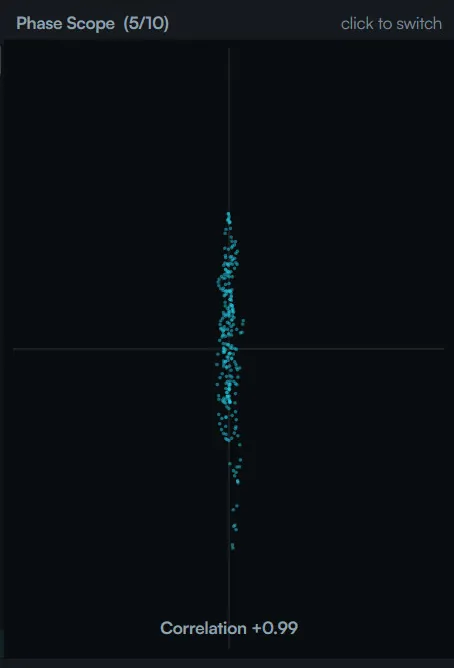
- Phase meterA live stereo goniometer with a correlation measurement, and plain descriptions of out-of-phase, wide, stereo, and mono material.
- Accessible summariesThe same analysis is available as text, so a reading does not depend on interpreting the graph.
11
Every command is reachable without the mouse, and the shortcut means the same thing on both platforms.
- Native, accelerated drawing
- Searchable shortcuts
- Conflict checking
- Designed empty states
Workspaces, keyboard, and interface
One window covers library and waveform work. The results grid, sidebar, transport, waveform, document tabs, properties, history, markers, selection tools, spectral tools, and analysis panels share one interaction model, and the workspace is chosen to suit the task at hand.
Open documents, panel state, and preferences are restored at the next launch. Keyboard shortcuts are searchable, customizable, persistent, and checked for conflicts. Native menus, context menus, drag and drop, adjustable interface scaling, accessible names, status announcements, and designed empty, loading, unavailable, and error states are there for the same reason: a tool used all day should never leave you at a blank panel.
Keyboard
| Action | Shortcut | Action | Shortcut |
|---|---|---|---|
| Search | Ctrl+F or type | Favorite | Ctrl+D |
| Play or pause | Space | Edit tags | Ctrl+T |
| Browse and audition | Up Down | Color tag | Ctrl+1-9 |
| Skip 5 seconds | Left Right | Clear color tag | Ctrl+0 |
| Nudge 1 second | Shift+Left Shift+Right | File into a bin | Ctrl+Shift+1-9 |
| Previous or next sound | , . | Pick a bin by name | Ctrl+B |
| Loop | Ctrl+L | New project bin | Ctrl+Shift+B |
| Reverse | Ctrl+R | Remove from a bin | Ctrl+Alt+B |
| Mute | Ctrl+M | Undo annotation change | Ctrl+Z |
| Volume | Ctrl+Up Ctrl+Down | Export selection | Ctrl+Shift+E |
| Speed | Shift+Up Shift+Down | Add watch folder | Ctrl+O |
| Select all | Ctrl+A | Rescan library | F5 |
| Copy path | Ctrl+C | Quick Commands | Ctrl+Shift+P |
| Reveal in file manager | Ctrl+E | Shortcut reference | F1 |
Use Cmd in place of Ctrl on macOS, where the native menus show the matching Cmd shortcuts. Every assignment can be changed and is checked against the rest of the set.
12
The same services underneath the interface, the command line, and the agent tools. One implementation, three ways in.
- Files stay local
- No account
- Command line access
- Local agent tools
Local files and automation
Library folders, audio files, annotations, waveform documents, recovery journals, preferences, and caches stay on your system. There is no account and no cloud service, the collection is not uploaded or relocated, and caches are bounded and clearable.
Core library and editing workflows are reachable from the interface, from command-line applications, and from built-in local agent tools. Manual and automated operations call the same services, touch the same files, and enter the same labeled history, so a repeatable production step does not need a separate project representation to exist alongside your work.
Available from every surface
| Workflow | Interface | Command line | Agent tools |
|---|---|---|---|
| Search and filter | Yes | Yes | Yes |
| Playback and audition | Yes | Yes | Yes |
| Tags, colors, notes, favorites | Yes | Yes | Yes |
| Smart Collections and Project Bins | Yes | Yes | Yes |
| Waveform edits and markers | Yes | Yes | Yes |
| Spectral repair | Yes | Yes | Yes |
| Analysis | Yes | Yes | Yes |
| Export and transcode | Yes | Yes | Yes |
13
Read what the collection already contains. Write what the delivery asks for.
- Progressive decoding
- Grouped encodings
- Dither with noise shaping
- Marker interchange
Media and format support
The library indexes and auditions the formats a working collection already contains, and the editor writes the formats a delivery asks for.
| Area | Support |
|---|---|
| Indexed and auditioned | WAV, MP3, M4A, AAC, FLAC, OGG, Opus, AIFF, CAF |
| Editor export | PCM and floating-point WAV, AIFF, FLAC, MP3, AAC, Opus, Ogg Vorbis |
| Library transcode | WAV, MP3, OGG, FLAC, M4A, Opus from a selection |
| Bit-depth reduction | TPDF dither with optional noise shaping |
| Marker interchange | WAV cue and label information round-trips through the marker system, preserving point and range markers |
| Decoding | Progressive playback before the complete source has loaded |
| Grouped encodings | Several encodings of one sound presented as one result, with the highest quality version played |
Two tools that would otherwise be two purchases
A sound library manager for finding, auditioning, and organizing a large collection, and a sample-accurate waveform and spectral editor for preparing those sounds for delivery. Together they make a permanent local audio workflow for video, game, podcast, music, and sound-design work, with no account, no cloud dependency, and no subscription.